WooCommerce already tells you what you sold. What it doesn’t tell you is how people found your store, which campaigns brought in buyers and where visitors give up before they pay.
That’s the gap web analytics fills. And for most store owners, the default answer has been Google Analytics, with a setup that needs a developer and a cookie banner that hides part of your traffic.
The Plausible WordPress plugin does it with one setting. Turn on ecommerce revenue and the plugin sets up your purchase goals, revenue tracking and a checkout funnel automatically. No code and no Tag Manager.
P.S. You can look at our own live dashboard to see what a Plausible dashboard looks like with real data.
- What WooCommerce Analytics covers and what it misses
- Why not just use Google Analytics?
- How to set up WooCommerce tracking
- What gets tracked automatically
- WooCommerce conversion tracking
- Which marketing channels drive sales?
- A few more things worth setting up
What WooCommerce Analytics covers and what it misses
WooCommerce comes with built-in reports for orders, revenue, refunds, taxes, coupons and stock. Keep using them. For store operations they’re the source of truth.
They stop at the edge of your store, though. WooCommerce Analytics can’t tell you:
- Which sources and campaigns bring visitors who buy, from Google and newsletters to social posts and ads
- Your conversion rate from a visit to a purchase, and how it changes by source, country or device
- Where people drop off between looking at a product and paying for it
- Which landing pages and blog posts lead to sales
That’s what Plausible adds. The two work side by side.
Why not just use Google Analytics?
You can. But a working GA4 ecommerce setup means sending purchase and cart events with the right parameters to the data layer, testing them in DebugView and then building reports to read the results. Most store owners end up paying someone to do it.
The data you get is also incomplete. GA4 uses cookies, so in the EU it needs a consent banner, and visitors who decline aren’t counted. Ad blockers and privacy-focused browsers block it too. One independent comparison found GA4 missing up to 55% of the traffic Plausible recorded on the same site.
Plausible doesn’t use cookies or collect personal data, so you don’t need a consent banner for it. The script is a fraction of the size of GA4’s, which matters on a store where every second of load time costs sales.
How to set up WooCommerce tracking
You need a WooCommerce store and a Plausible account. If you don’t have one yet, there’s a 30-day free trial with no credit card required.
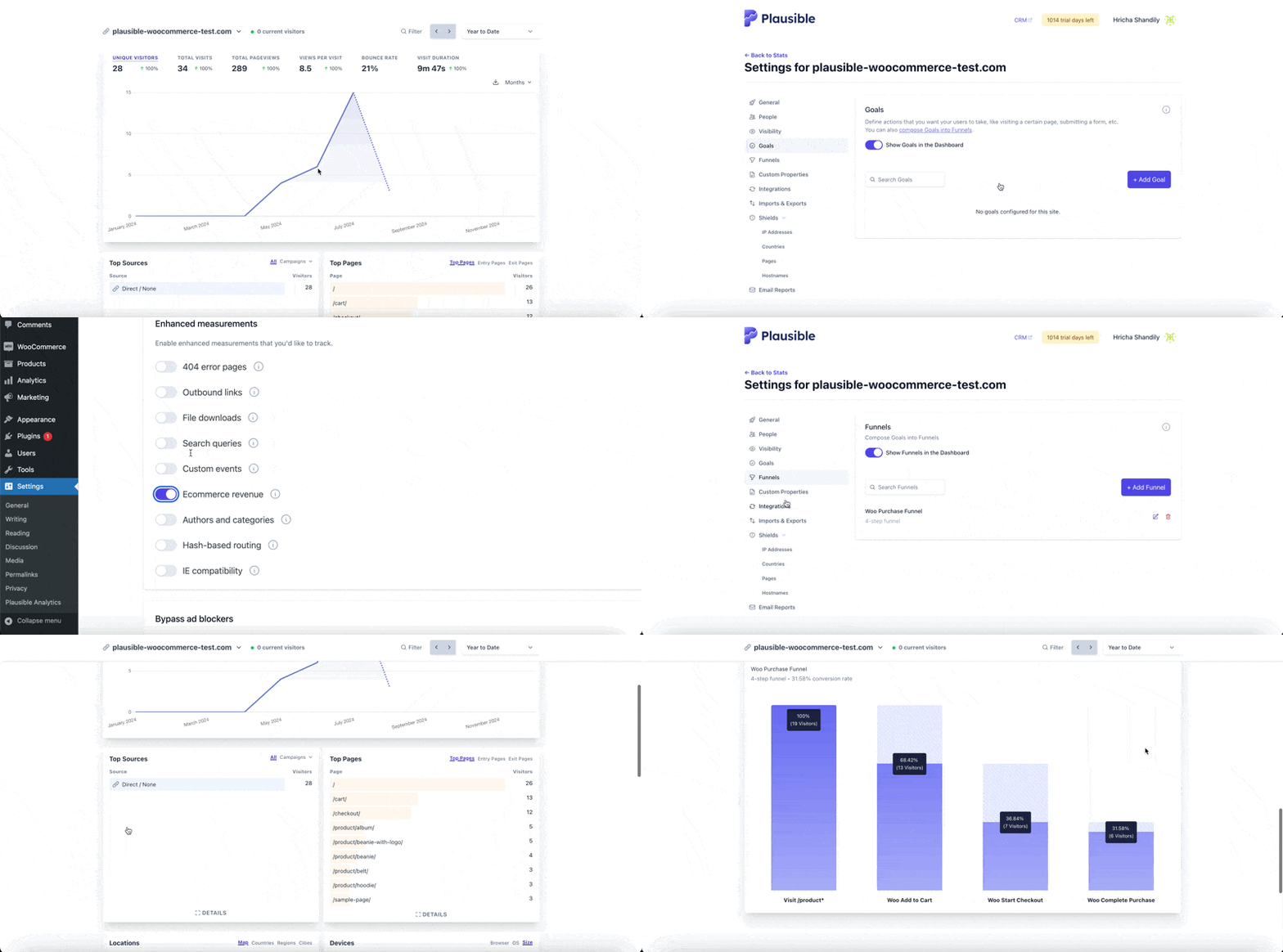
- In WordPress, go to Plugins, click “Add New” and search for “Plausible Analytics”. Install and activate it, then follow the setup steps. Full instructions are here.
- In the plugin settings, open “Enhanced measurements” and turn on “Ecommerce revenue”.
That’s it. It takes less than 30 seconds:
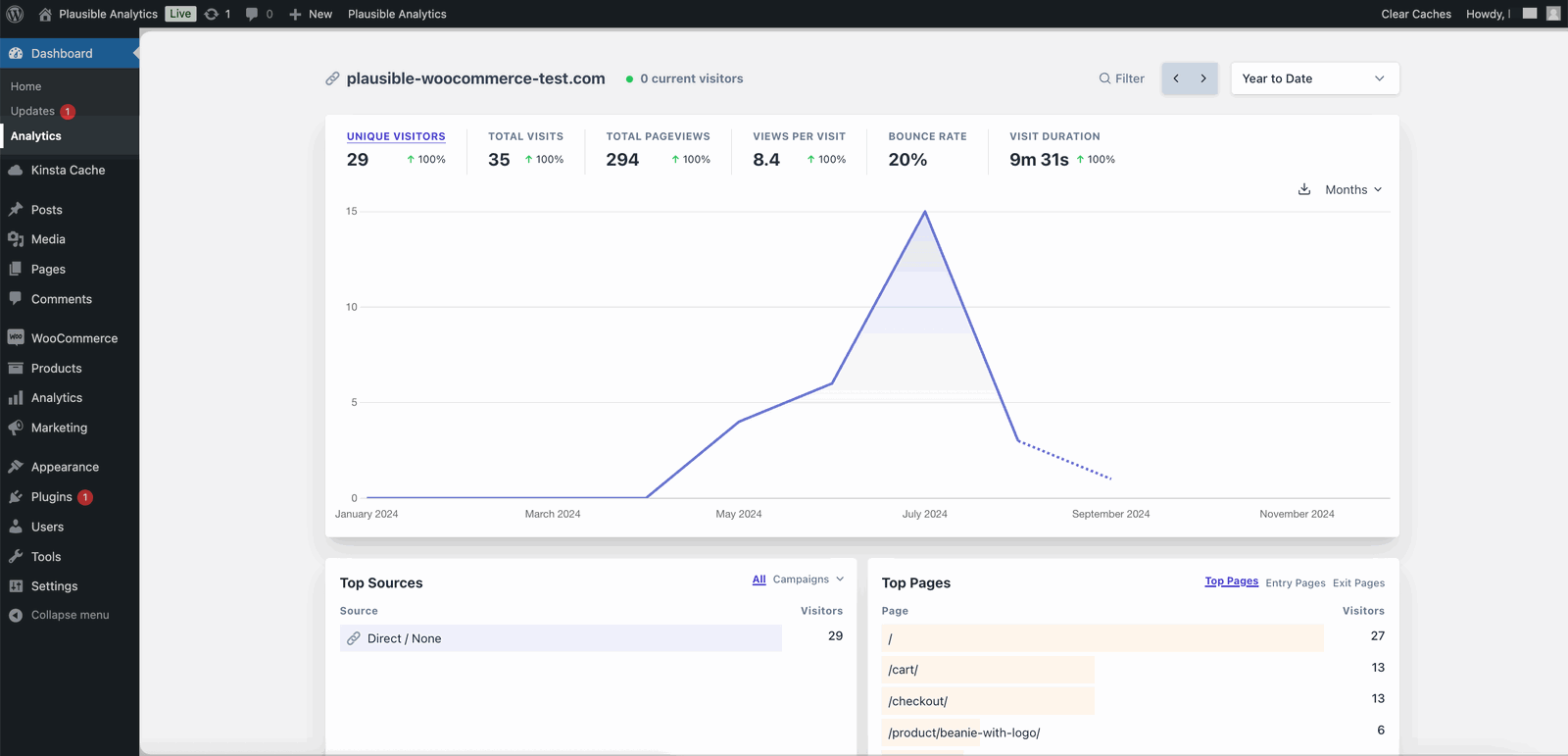
Ecommerce revenue tracking and funnels are part of our Business plan. You can see your stats in your Plausible dashboard or inside WordPress:
What gets tracked automatically
Once ecommerce revenue is on, the plugin creates these goals for you:
- Woo Complete Purchase: a conversion with the order’s revenue and currency every time someone completes an order
- Woo Start Checkout: every time someone starts checking out, whether they finish or not
- Woo Add to Cart and Woo Remove from Cart
- Visit /product*: a pageview goal for your product pages, so product views count as a step
Each event comes with custom properties such as the product name, price, quantity and cart total. That lets you filter any goal by product. Checkout events also carry the subtotal, shipping, tax and order total.
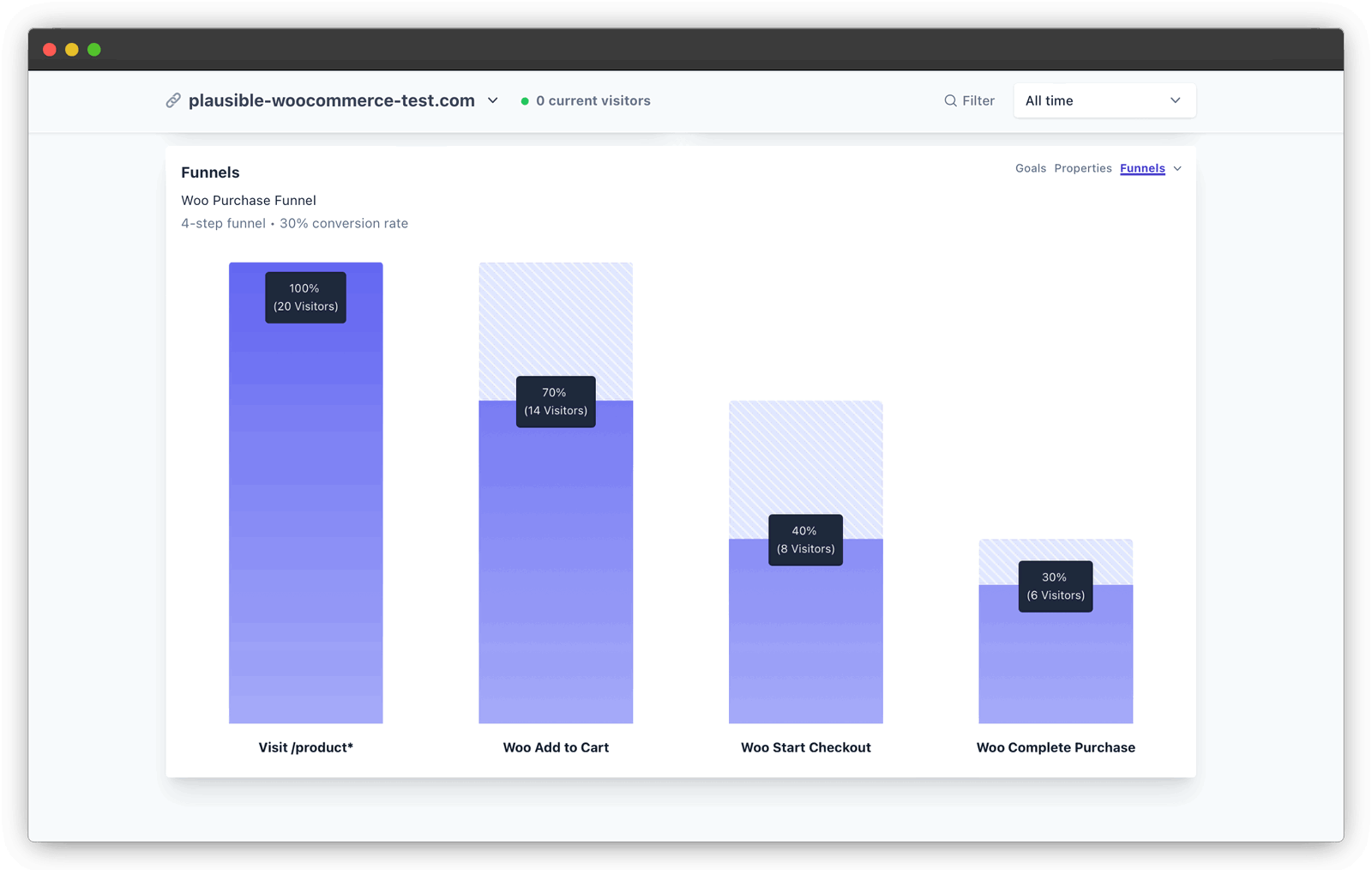
The plugin also builds a purchase funnel called “Woo Purchase Funnel”. It goes from viewing a product to adding it to the cart, starting checkout and completing the purchase. You can see how many people make it through each step and where the rest leave.
WooCommerce conversion tracking
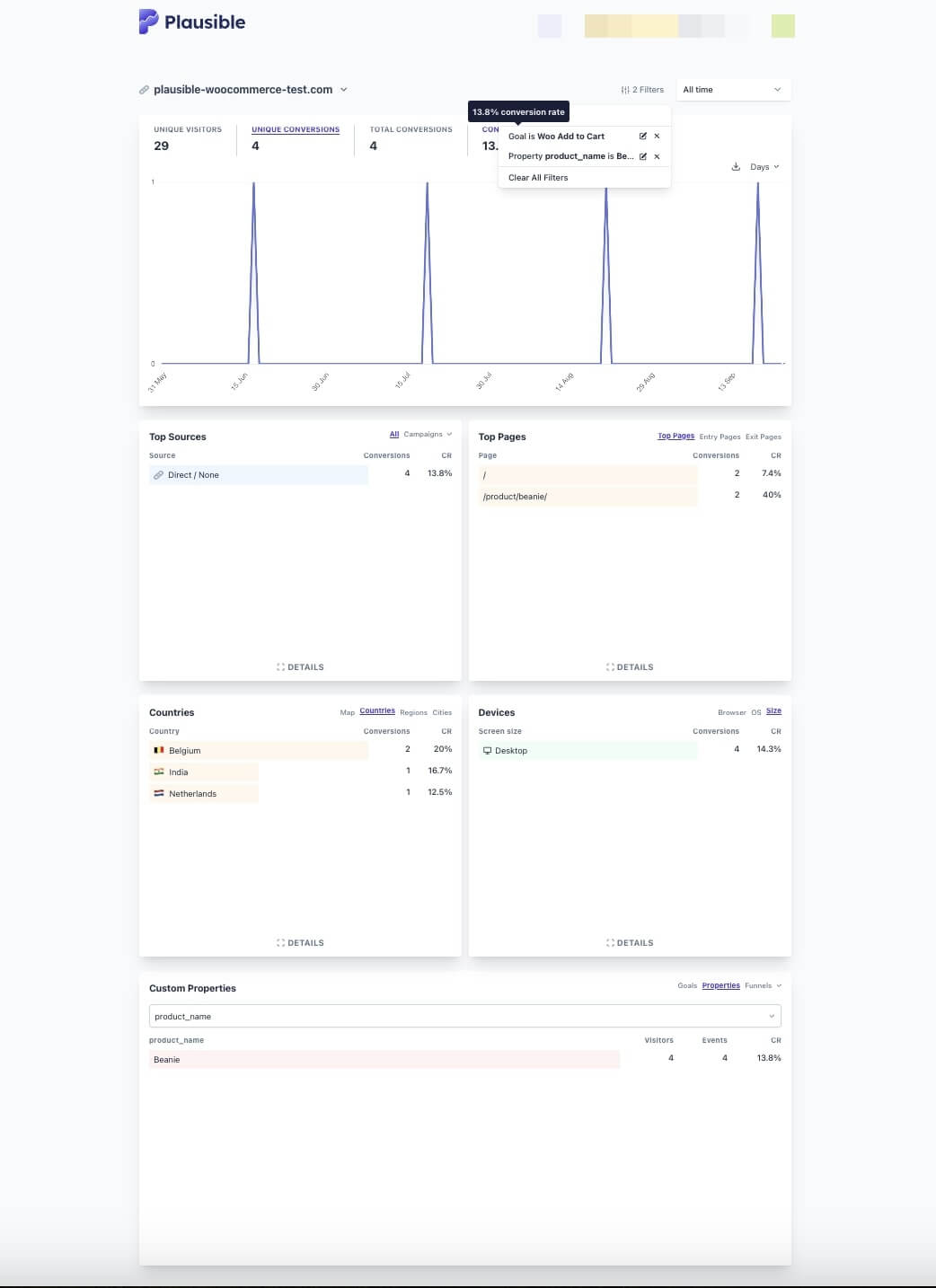
This is where it gets useful. Every goal in Plausible shows its conversion rate, and every filter you apply to the dashboard applies to that rate too.
Say you sell beanies. Filter the dashboard by “Goal is Woo Add to Cart” and “Property product_name is Beanie”. You’ll see how many visitors added a beanie to their cart and what share of all visitors that is. Below it, the rest of the dashboard narrows to those visitors: where they came from, which pages they landed on, which countries and devices they used.
Some questions you can answer the same way:
- What’s the purchase conversion rate from organic search compared to your newsletter?
- Which products get added to carts a lot but rarely bought?
- Do mobile visitors start checkout as often as desktop visitors but finish less often?
For drop-off, open the funnel. A big gap between “Woo Start Checkout” and “Woo Complete Purchase” usually points at the checkout itself: surprise shipping costs, too many fields or a payment method people don’t trust. A gap between product views and add to cart points at the product pages.
Which marketing channels drive sales?
Plausible groups your traffic into channels such as organic search, social, email, paid and referrals. Click any of them in the Sources report and the whole dashboard filters to that channel, including your purchase goal and its revenue.
To make this accurate, tag your campaign links with UTM parameters wherever you share them: ads, newsletters, social posts and partner sites. Untagged links from apps and email often show up as Direct. Our UTM builder makes the tags for you.
For search, connect the Google Search Console integration to see which search queries bring visitors to your store.
A few more things worth setting up
- Import your Google Analytics history. If you’re switching from GA4, you can import your historical stats so you keep year-over-year comparisons.
- Track anything else that matters. Newsletter signups, wishlist clicks or return requests can all be custom goals. The plugin’s other enhanced measurements cover site search, 404 pages, outbound links and file downloads.
- Save the views you check often. Segments let you save a set of filters, such as “buyers from Germany on mobile”, and come back to it in one click.
If you have a question about your setup, get in touch. We’re happy to help.
Try Plausible for your WooCommerce store. Your purchase funnel can be running in the next ten minutes.